Connect and Use Zoom with Sensei
This guide explains how to connect your Zoom account to Sensei, how Sensei joins your Zoom meetings, and how to disconnect your Zoom account if needed.
Connect Your Zoom Account
To allow Sensei to automatically join and record your Zoom meetings, you must authorize access to your Zoom account during setup.
Step 1: Open the Welcome Screen
During account setup, you will see a Welcome Screen with a sequence of tasks to complete.
The second task is Connect your Zoom account.
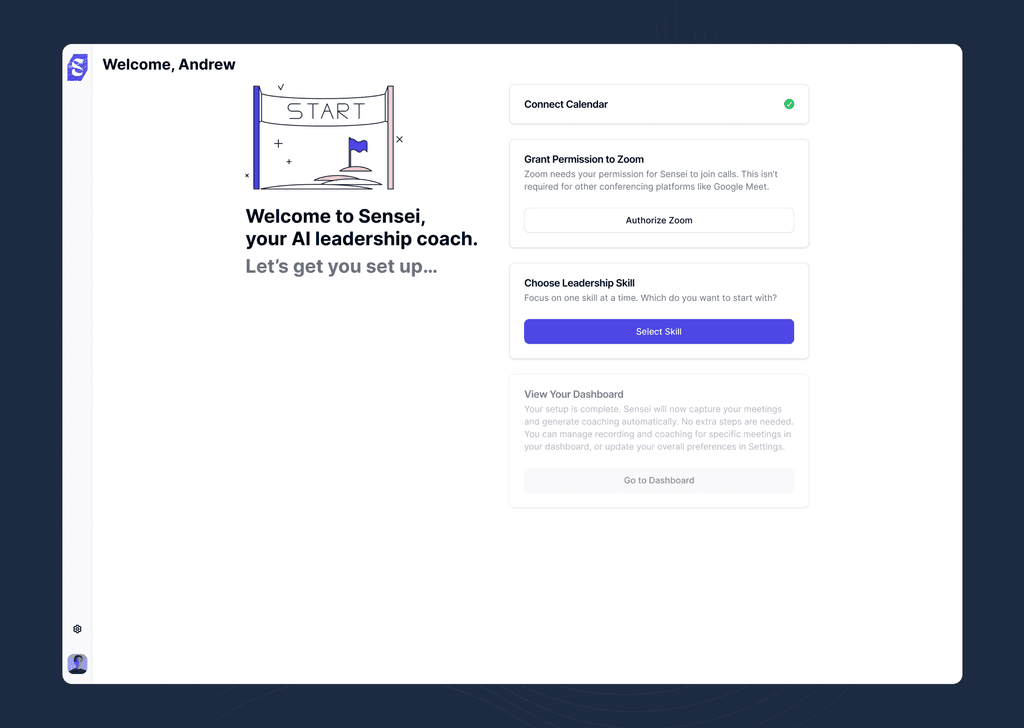
This step will display the following prompt:
Zoom needs your permission for Sensei to join calls.
This isn't required for other conferencing platforms like Google Meet.
Click Authorize Zoom to begin the connection process.
Step 2: Log in to Zoom
A Zoom authorization window will appear.
If you are not already logged in to Zoom, you will be prompted to log in.
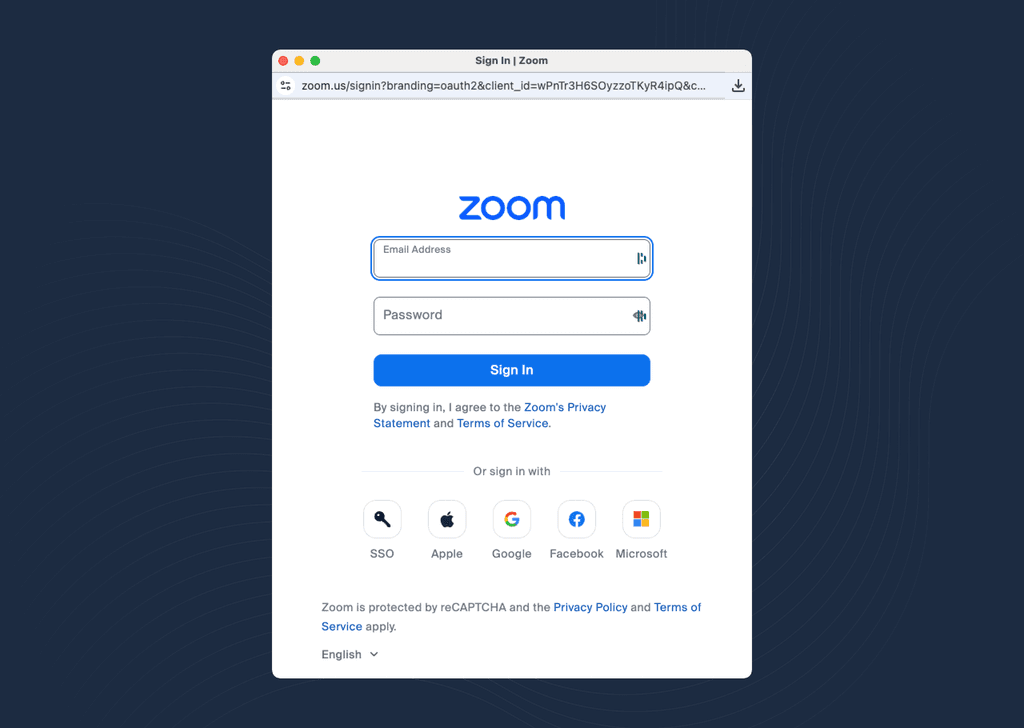
Enter your Zoom credentials to continue.
Step 3: Approve Permissions
After logging in, Zoom will display a permissions screen asking you to authorize Sensei to access your Zoom account.
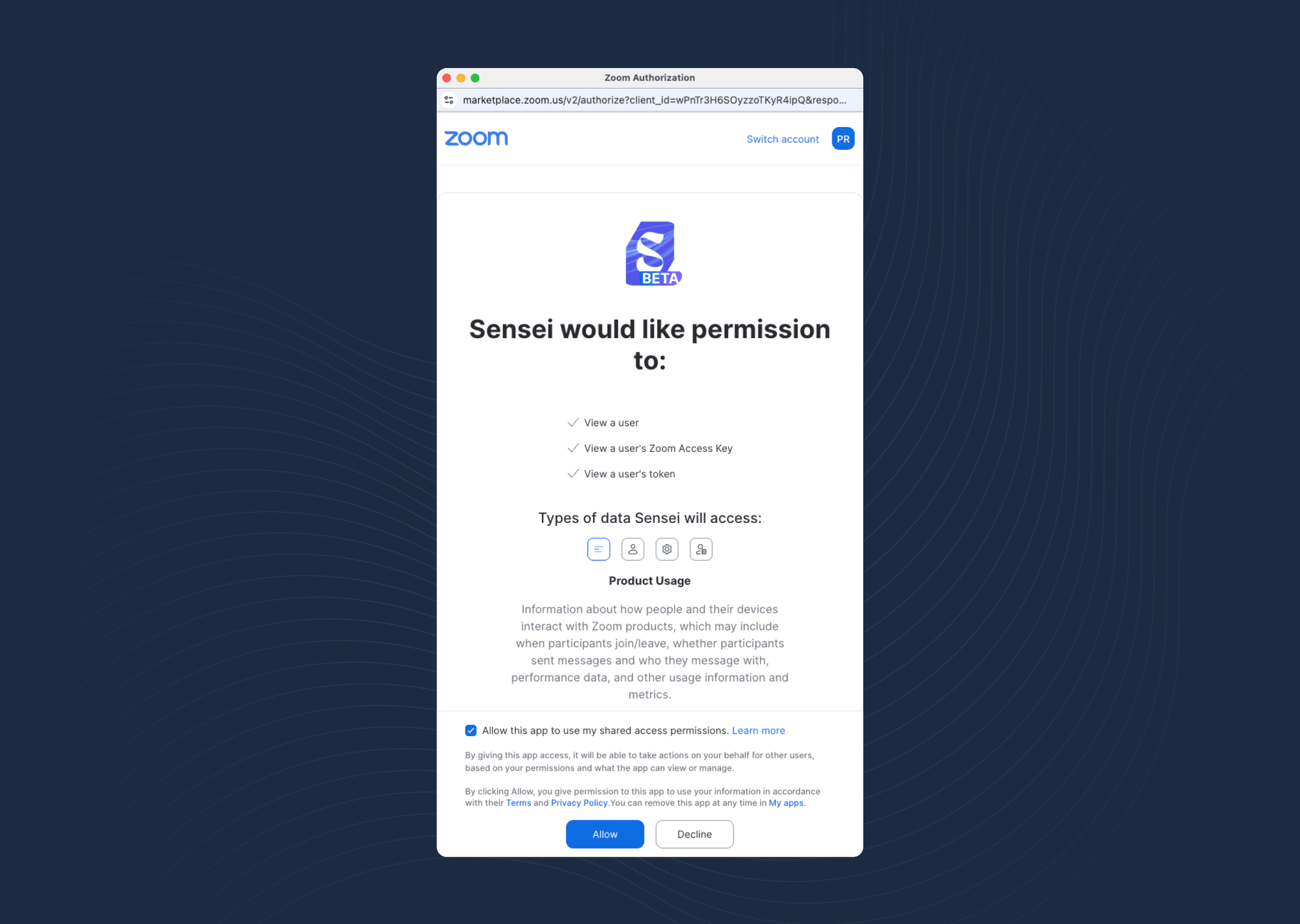
- Review the requested permissions.
- Check the confirmation box.
- Click Allow to grant access.
Once approved, your Zoom account will be connected to Sensei.
Step 4: Complete the Remaining Setup Tasks
After authorizing Zoom, return to the Welcome Screen and continue completing the remaining setup tasks.
How Sensei Joins Your Zoom Meetings
Once your Zoom account is connected, Sensei can automatically join your scheduled meetings.
Sensei will join a meeting when:
- The meeting has been marked to record in Sensei
- The meeting contains a Zoom meeting link
When both conditions are met, Sensei will automatically join the Zoom call at the scheduled time.
No additional action is required.
Disconnect Your Zoom Account
You can disconnect your Zoom account from Sensei at any time.
Step 1: Open Settings
Navigate to:
Settings → Preferences → Zoom Account
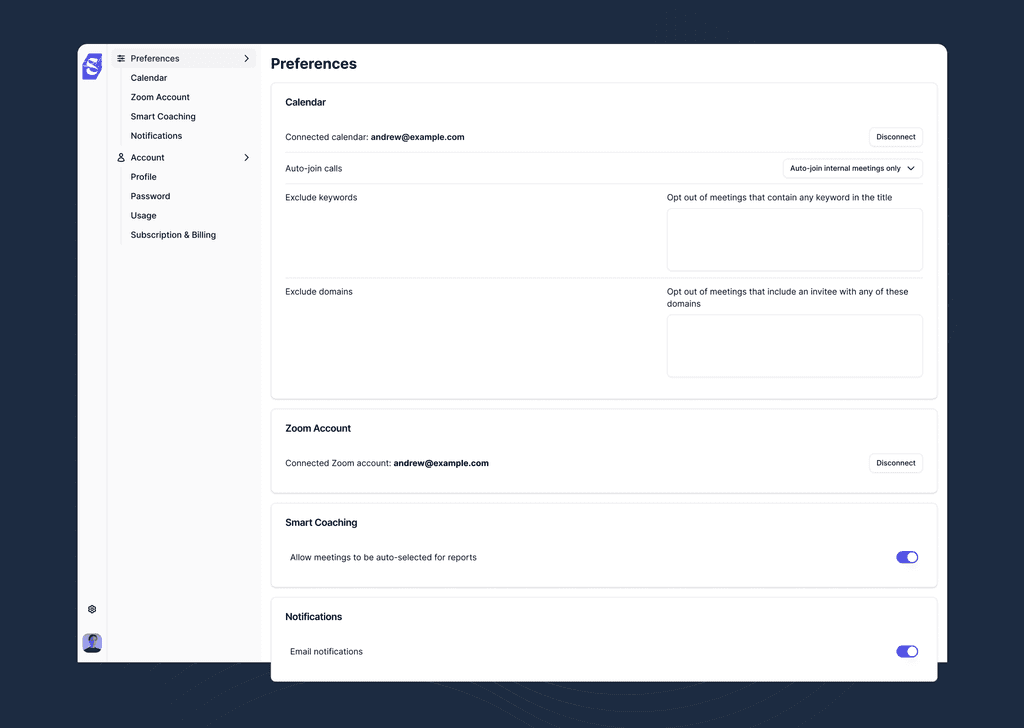
Step 2: Disconnect
Click Disconnect to remove the Zoom authorization.
Once disconnected, Sensei will no longer join your Zoom meetings.
Reconnect Your Zoom Account
You can reconnect Zoom at any time.
- Go to Settings → Preferences → Zoom Account
- Click Connect
- Repeat the authorization process described above
After reconnecting, Sensei will resume joining your Zoom meetings automatically.